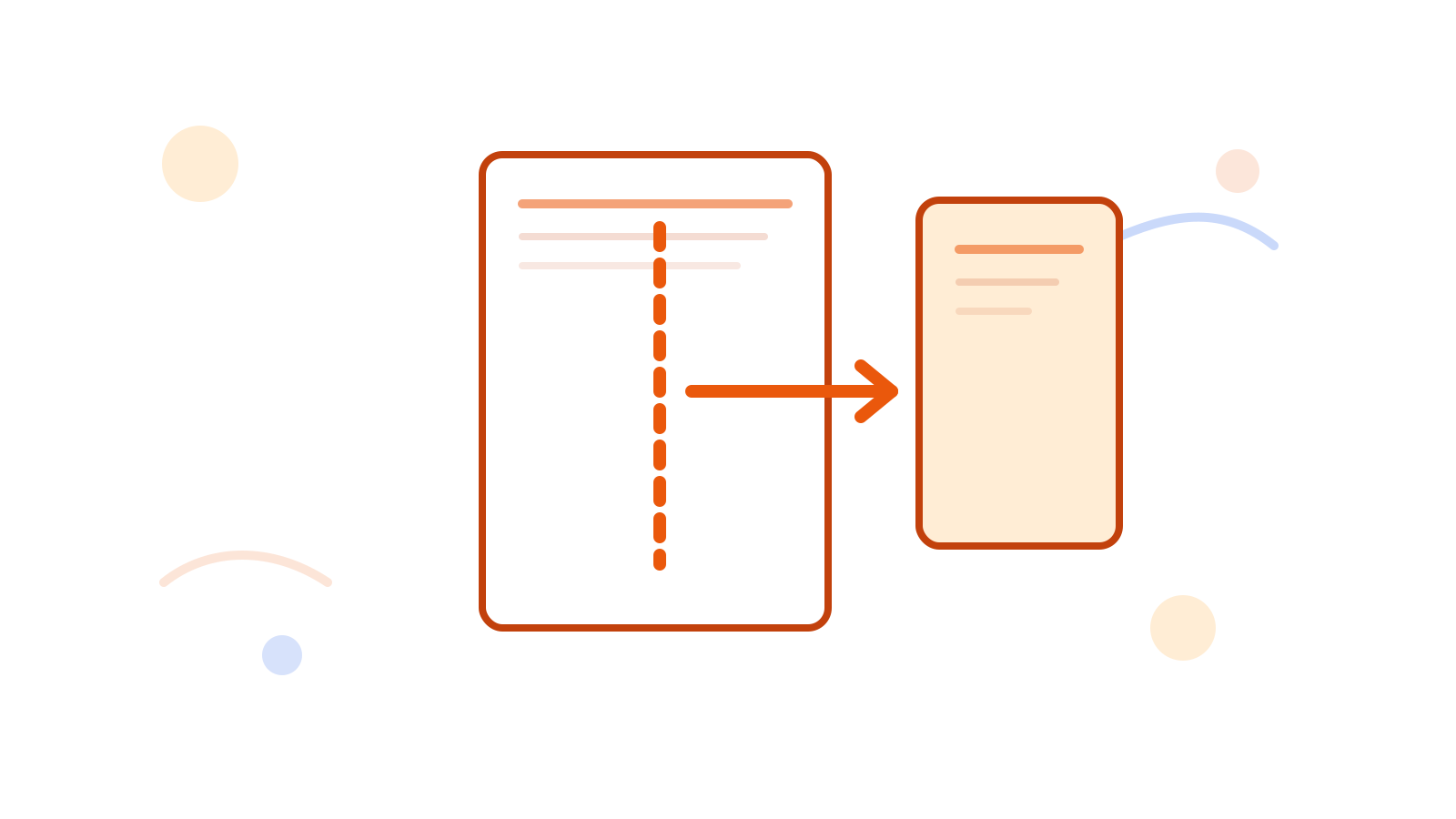
How to Split a PDF into Separate Files Without Guessing the Ranges
Splitting a PDF sounds simple until the output becomes messy. The problem is usually not the tool. The problem is deciding whether you need equal chunks, selected sections, or a cleanup pass first.
The fastest place to start is Split PDF, especially if you already know whether you want a simple repeat pattern or a more custom grouping.
Short Answer
If you want evenly sized outputs, split by pages per PDF. If you need specific sections, switch to a custom grouping flow and define the parts clearly before processing.
If you only need to keep a few pages instead of breaking the whole document apart, Extract PDF Pages may be the cleaner tool.
When Split Makes Sense
Use split when:
- one long PDF needs to become smaller files
- you want separate chapters or sections
- a scanner produced one combined file that should become multiple handoff files
Better Split Decisions
Use a simple split when the pattern repeats
If the document should break every 2 pages or every 3 pages, use the simple mode first.
Use custom groups when the document has real sections
If one part is pages 1 to 3 and another is page 4 only, define those groups directly inside Split PDF.
Clean the document first when needed
If blank pages or unwanted sections are mixed into the PDF, clean them up with Delete PDF Pages before splitting.
Split vs Extract: A Better Rule
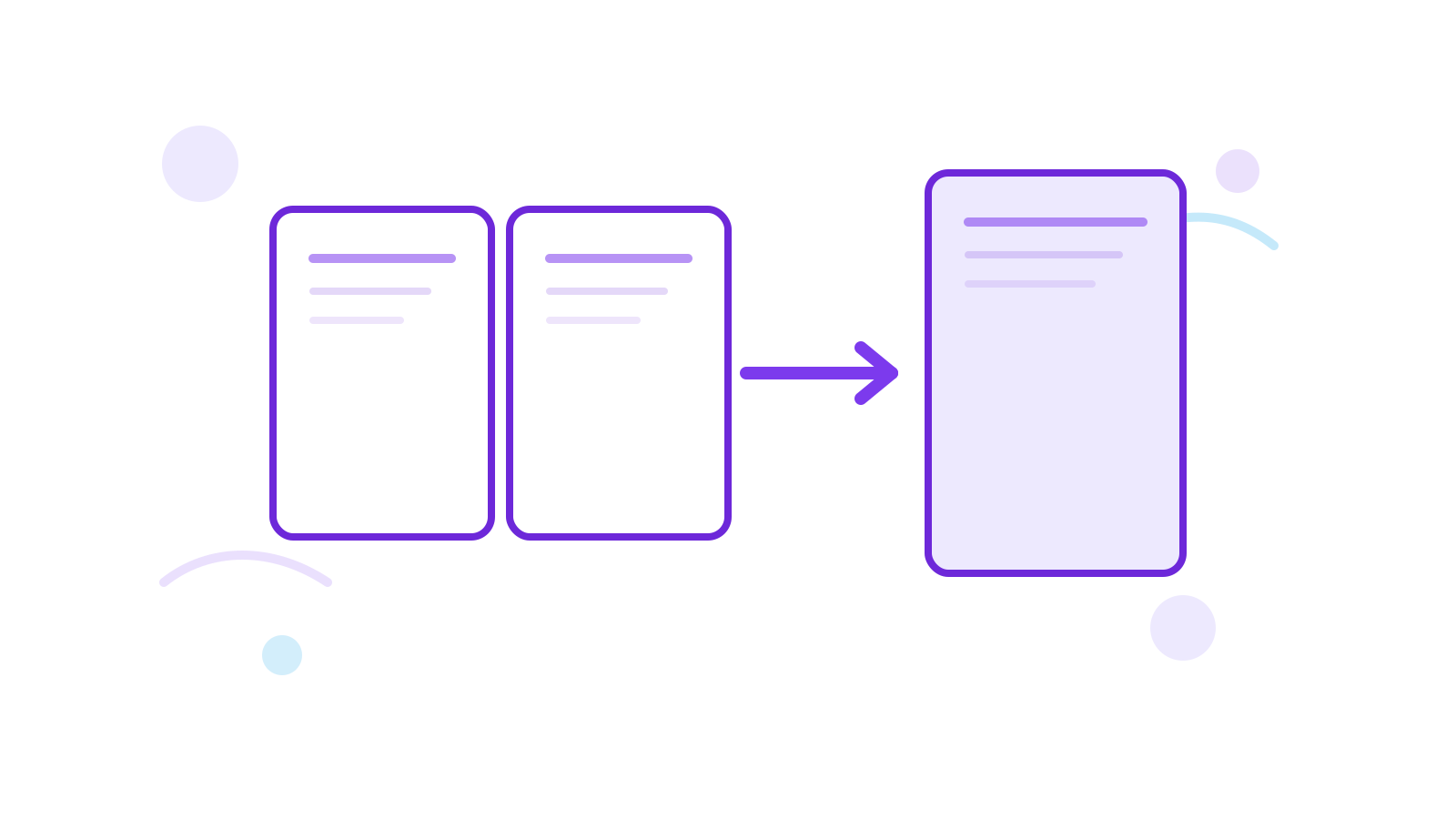
Use Split PDF when you want several output files.
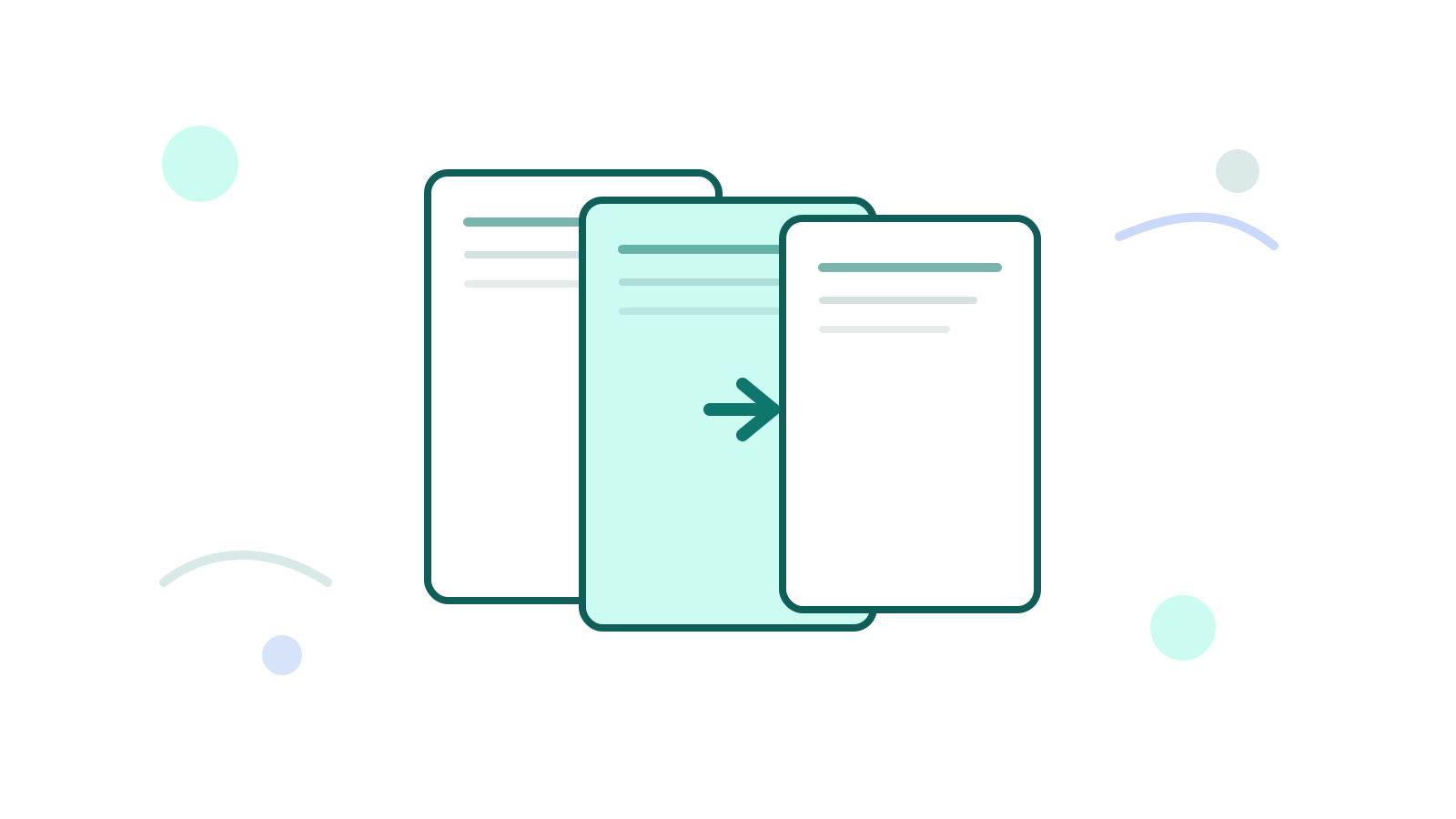
Use Extract PDF Pages when you want one smaller output file that keeps only the pages you care about.
That one distinction removes most confusion.
Practical Examples
Split every 2 pages
Useful when a long PDF should become a repeating set of smaller handoff files.
Split by custom groups
Useful when one report should become a summary file, an appendix file, and a final reference file.
Extract instead of split
If you only need pages 3 to 5 as one smaller PDF, extraction is cleaner than building multiple split outputs.
How to Choose the Split Mode Fast
Use this rule before you upload:
- if every output file should have the same number of pages, use the simple pages-per-file flow
- if each output should represent a named section, use custom groups
- if you only need to keep part of the document and throw the rest away, use Extract PDF Pages
That decision usually matters more than the split itself.
Typical Split Workflows
One scanned packet needs one file per form
If the scanner produced a single PDF but every form inside the packet is two pages, split by pages per PDF first.
One report contains clear sections
If a proposal PDF contains a summary, pricing, and appendix, custom groups make more sense than equal chunks because the sections do not repeat evenly.
One big file needs cleanup before splitting
If the PDF includes blank inserts or accidental pages, remove them first with Delete PDF Pages. Splitting before cleanup usually creates more bad outputs instead of fewer.
What the Output Plan Should Look Like
Before you run the split, be able to answer these questions:
- How many output files should exist?
- Should the outputs repeat by pattern or follow named sections?
- Does any page need to be removed before the split?
- Will you need to merge some parts again later?
If you cannot answer those, stop and define the output plan first. The tool is fast, but the real time saver is avoiding a second split pass.
Common Split Mistakes
Splitting before deleting unwanted pages
This often creates several messy output files instead of one clean split. If the source contains obvious noise, clean that first.
Using custom groups for a repeating pattern
If the document really breaks every 2 or 3 pages, the simple mode is usually faster and less error-prone.
Using split when extract is enough
If your goal is one smaller PDF, not many separate files, use Extract PDF Pages instead.
Final Check Before Downloading the ZIP
- Does the number of output files match the plan?
- Did the first and last split land where you expected?
- Are there blank pages you should remove?
- Would one of the parts be more useful as an extracted PDF instead?
FAQ
Should I split or extract?
Split when you want multiple output files. Extract when you only want to keep a few pages in one new file.
What if I only need one section?
Use Extract PDF Pages. It is usually simpler than a full split flow.
Can I merge sections again later?
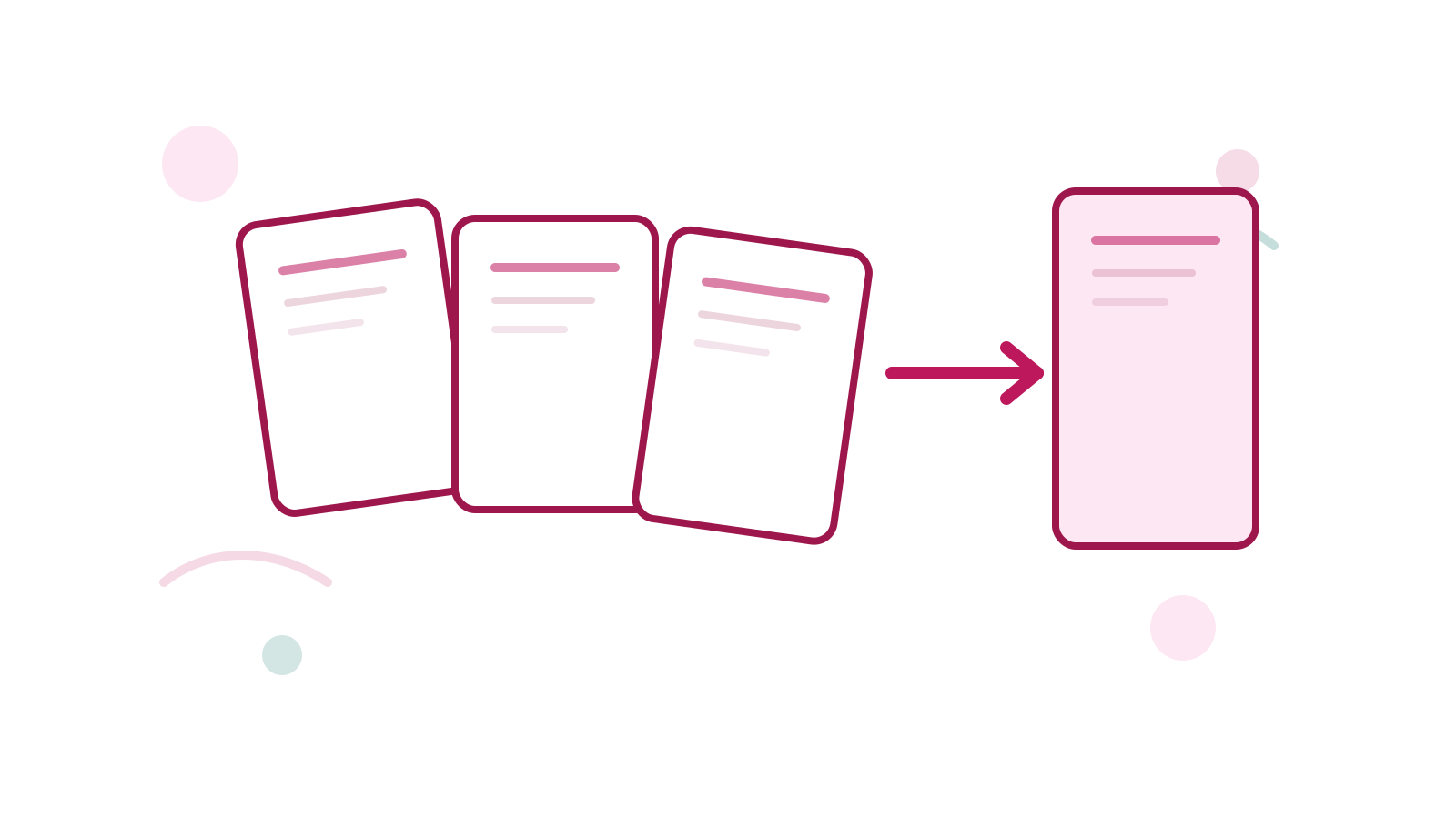
Yes. If you need to rebuild the document later, use Merge PDF.
Should I clean blank pages before splitting?
Usually yes. If the source already has obvious junk pages, Delete PDF Pages first so the split outputs stay predictable.
Next Step
Open Split PDF, decide whether the document needs a repeating split or custom groups, then process the file once with a clear output plan.