How to Merge Scanned PDFs Without Breaking the Page Order
If you scan a document in pieces, the hard part usually is not creating PDFs. The hard part is combining them into one clean file without ending up with sideways pages, duplicate covers, or sections in the wrong order.
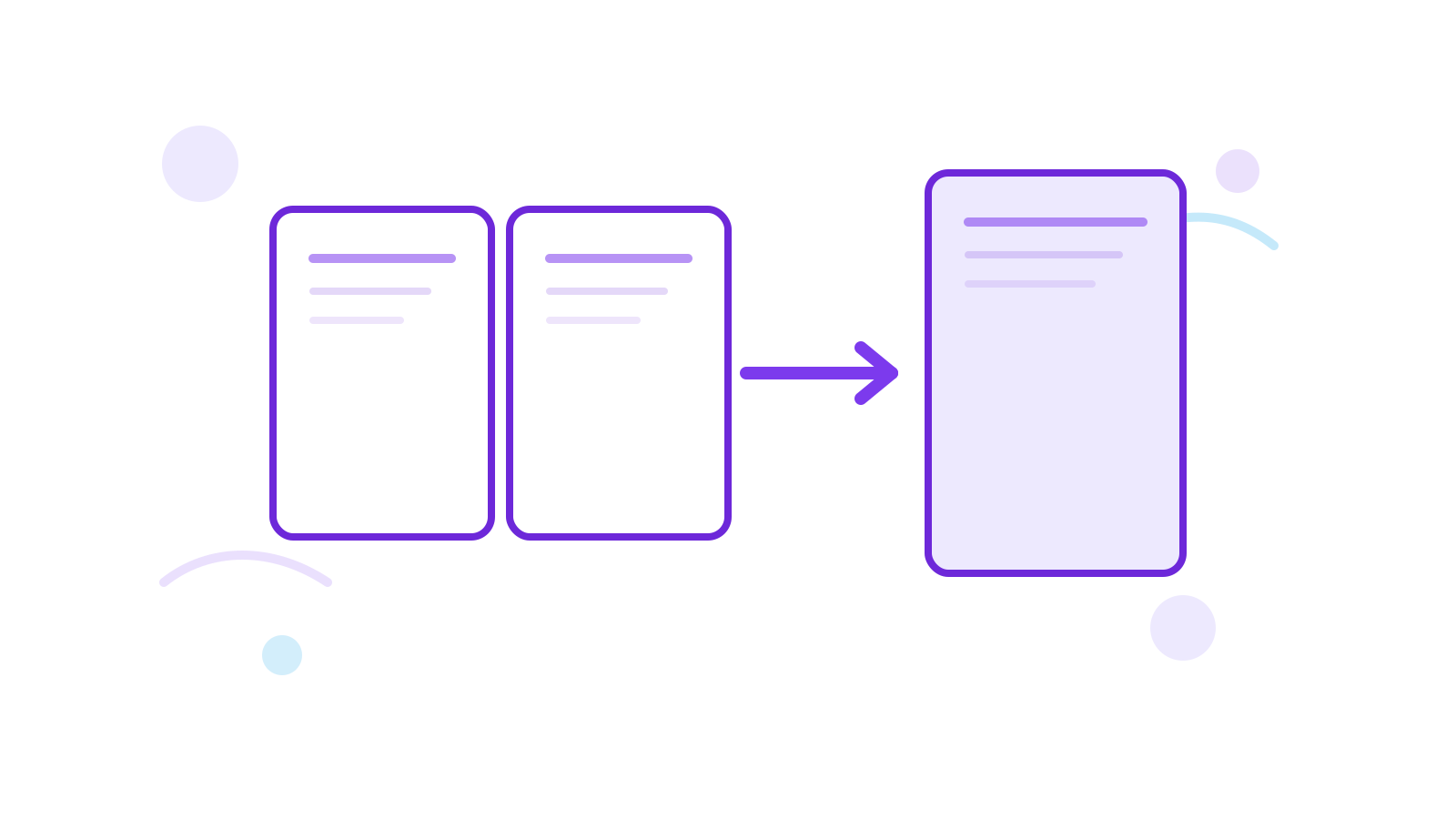
The fastest way to solve that is to upload the files in the right sequence, merge them, then use nearby cleanup tools only if the result still needs work. You can do the merge directly with Merge PDF.
Short Answer
To merge scanned PDFs well, put the files in the order they should appear in the final document, merge them once, then check three things:
- Are any pages sideways?
- Is the page order still correct?
- Did you include any pages you do not want?
If the answer to any of those is yes, fix them with:
When This Workflow Makes Sense
This merge flow is useful when:
- you scanned one report in several batches
- a contract came back as separate PDFs
- invoices or appendices were exported as multiple files
- the scanner saved every section as a separate document
If the source files already belong together, merging first is usually cleaner than trying to rebuild the document manually later.
Pre-Merge Checklist
Before you run the merge, check:
- whether every scan belongs to the same final document
- whether any batch is clearly sideways
- whether blank separator pages should be removed first
- whether the source order already matches the final reading order
This one-minute check prevents most cleanup later.
Step-by-Step
-
Check the source PDFs before uploading. Make sure they are all the right document version and that you are not mixing old scans with updated ones.
-
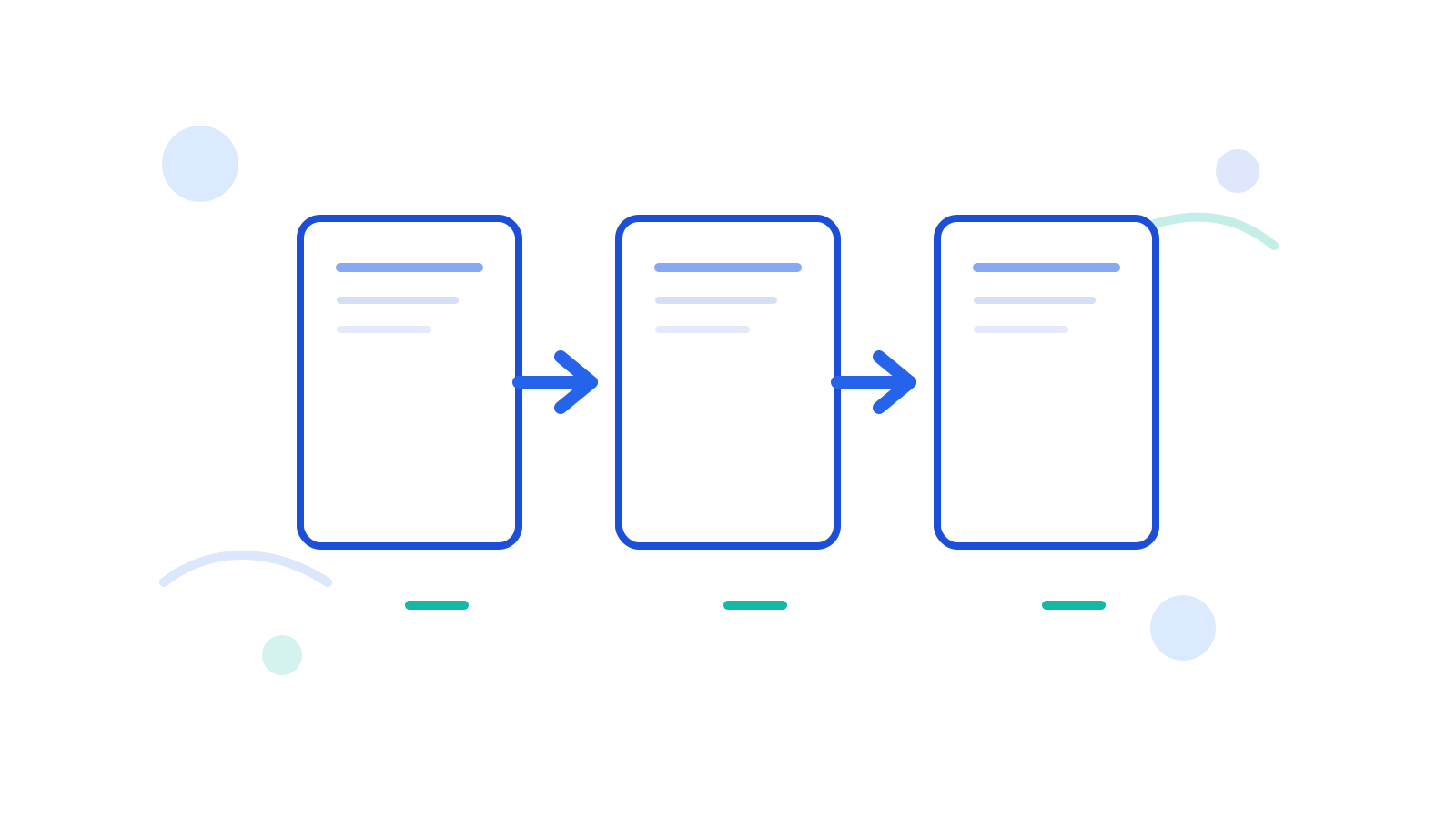
Arrange the files in the final reading order. The merge tool uses the visible file order. If the introduction should come first and the appendix last, set that before processing.
-
Run the merge once. Use Merge PDF to combine the files into one output PDF.
-
Review the merged result. Open the merged file and check the first page, a middle section, and the last page. This catches most order mistakes quickly.
-
Fix follow-up issues only if needed. If the pages are sideways, open Rotate PDF. If the page order is still wrong, use Reorder PDF Pages. If you kept extra cover pages or blank sheets, use Delete PDF Pages.
Best Cleanup Order After the Merge
When the output is not clean yet, fix issues in this order:
- page order
- page rotation
- extra pages
- split into separate files only if the final delivery needs multiple outputs
That order keeps you from correcting the same file twice.
Merge vs Reorder vs Split: Choose the Right Next Tool
| Goal | Best next move | Why |
|---|---|---|
| Combine separate scans into one final file | Merge PDF | You are building one document |
| Fix the reading order after the merge | Reorder PDF Pages | The file is right, the sequence is not |
| Rotate sideways pages | Rotate PDF | The content is correct but the orientation is wrong |
| Remove covers, blanks, or extras | Delete PDF Pages | You need the same file, just cleaner |
| Break the final file into parts | Split PDF | The delivery needs several outputs |
This is the easiest way to avoid overusing merge for problems that are really page-order or cleanup problems.
Common Problems After Merging
Some scanned pages are sideways
This usually happens when one scan batch was captured in landscape while the rest was portrait. Run the merged file through Rotate PDF before sharing it.
The sections are in the wrong order
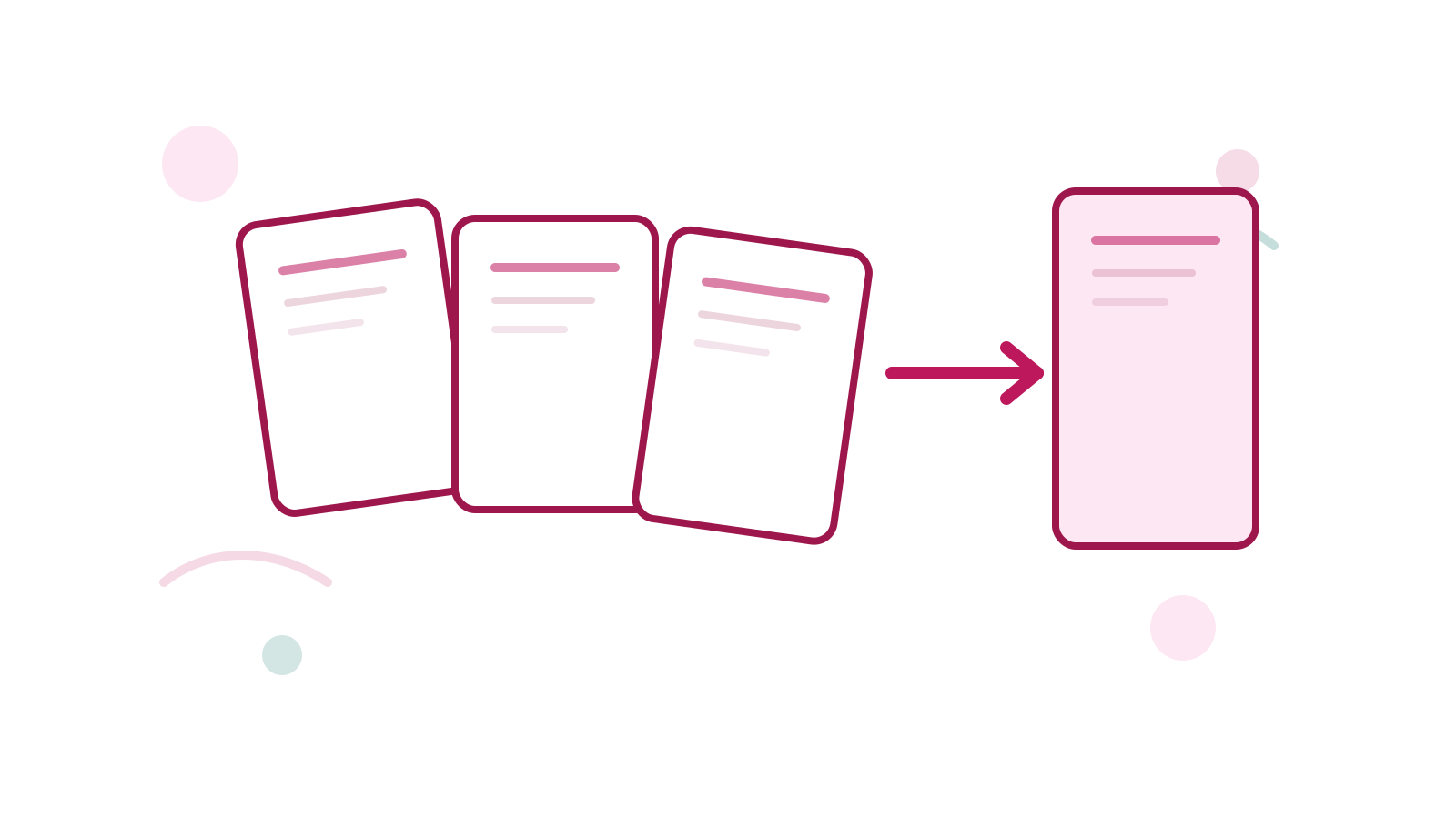
If the files were uploaded in the wrong sequence, the merged PDF will follow that same wrong order. Fix it with Reorder PDF Pages.
You included too many pages
If the final file contains a cover page, blank page, or appendix you do not need, remove it with Delete PDF Pages.
You actually need several smaller files
Sometimes the merge helps you confirm the full document structure first, but the final delivery still needs separate outputs. In that case, use Split PDF after the merge.
Final Review Before You Share the Merged PDF
- Does the first page look like the real first page?
- Did any section land in the wrong place?
- Are any batches sideways compared with the rest?
- Are blank pages or duplicate covers still inside the file?
- Would the recipient be better served by several files instead of one?
Best Practice Notes
- Merge only the files that truly belong in the same final document.
- Review the output before you email or upload it anywhere.
- Keep the merge step simple; do not try to fix every issue before you know the merged order.
- If a scan batch is obviously wrong, re-scan it instead of patching around poor source quality.
When Re-Scanning Is Better
Do not over-edit a scan when the source itself is poor. If pages are cut off, unreadable, or badly skewed, merging and rotating will not solve the real problem. Fix the source when the source is the issue.
FAQ
Can I merge scanned PDFs in a specific order?
Yes. The merge uses the file order shown in the tool, so place the PDFs in the final order before you process them.
What if one scanned section should not be included?
Merge the correct files only, or remove the unwanted pages afterward with Delete PDF Pages.
What if the merged PDF is correct but I need several files again?
Use Split PDF after the merge to break the combined file into smaller outputs.
Next Step
If your scans are already in separate PDFs, go straight to Merge PDF and build the final document first. Then clean up the result only if you actually see a problem.