How to Convert WebP to JPG for Sharing in Older or Simpler Workflows
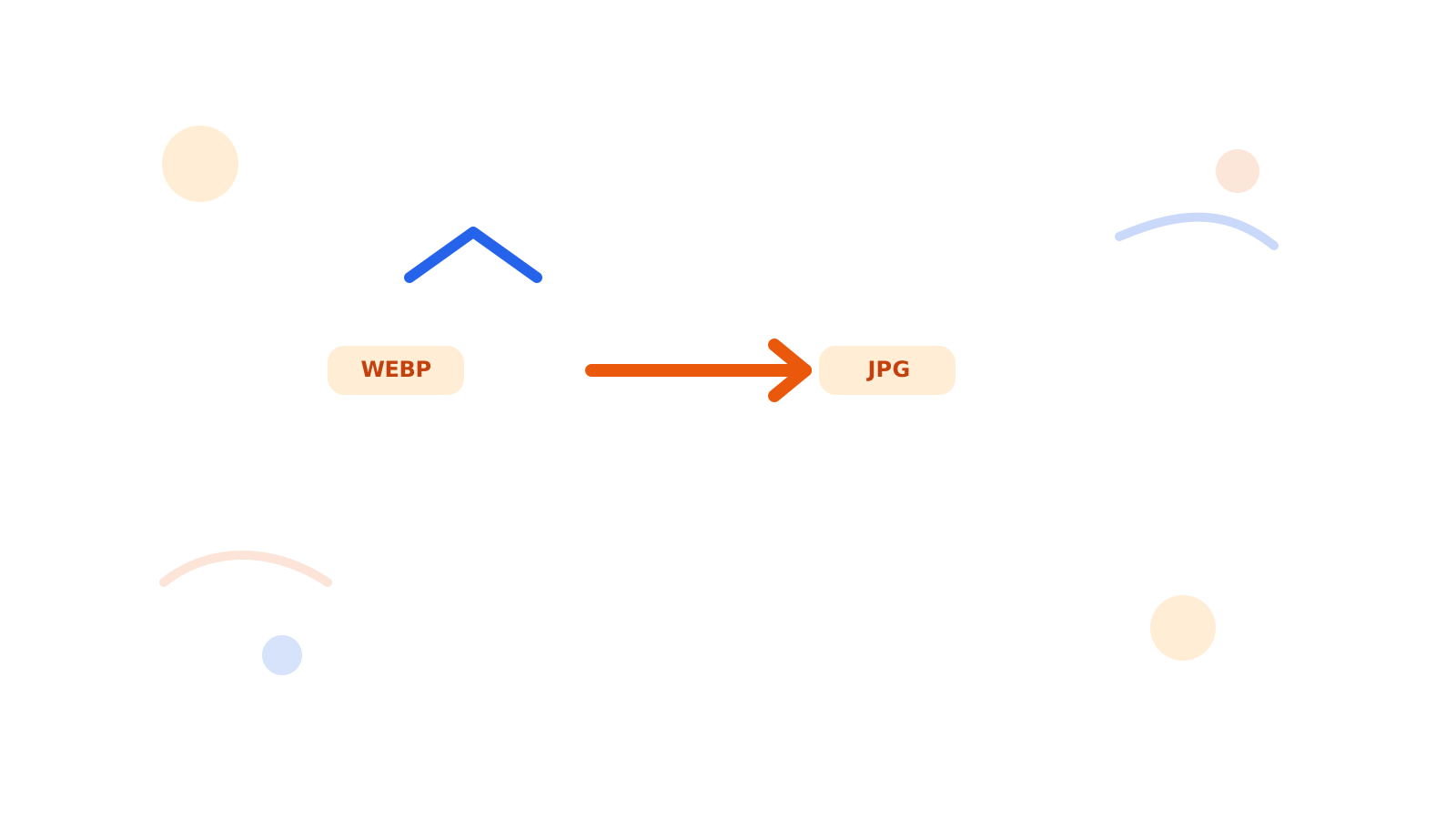
WebP is efficient, but not every workflow wants it. Sometimes you need a JPG because the receiving system, teammate, or app expects something more familiar.
That is where WebP to JPG fits.
Short Answer
Convert WebP to JPG when compatibility and easier sharing matter more than keeping the original WebP format.
If the JPG is still too heavy after conversion, continue with Compress Image.
Good Reasons to Convert
- you need to attach the image in a simple workflow
- the next tool expects JPG
- the receiving person does not want to deal with WebP
Better Workflow
- Convert the file with WebP to JPG.
- Check whether the output size is still reasonable.
- Compress or resize only if the JPG still needs cleanup.
FAQ
Should I convert WebP to JPG for email?
Sometimes yes, especially when the receiving workflow prefers common formats.
What if I only need a general format switch?
Use Convert Image when you want a broader conversion flow.
What if the JPG becomes too heavy?
Run it through Compress Image or Resize Image.
Next Step
Use WebP to JPG first, then optimize the JPG only if the final sharing workflow still needs a lighter file.