How to Crop an Image to Square Without Losing the Important Part
Square crops look simple, but they go wrong fast when the subject is too close to the edge or when the crop is decided too late.
The easiest fix is to crop visually first, then resize or compress only after the square frame looks right. Start with Crop Image.
Short Answer
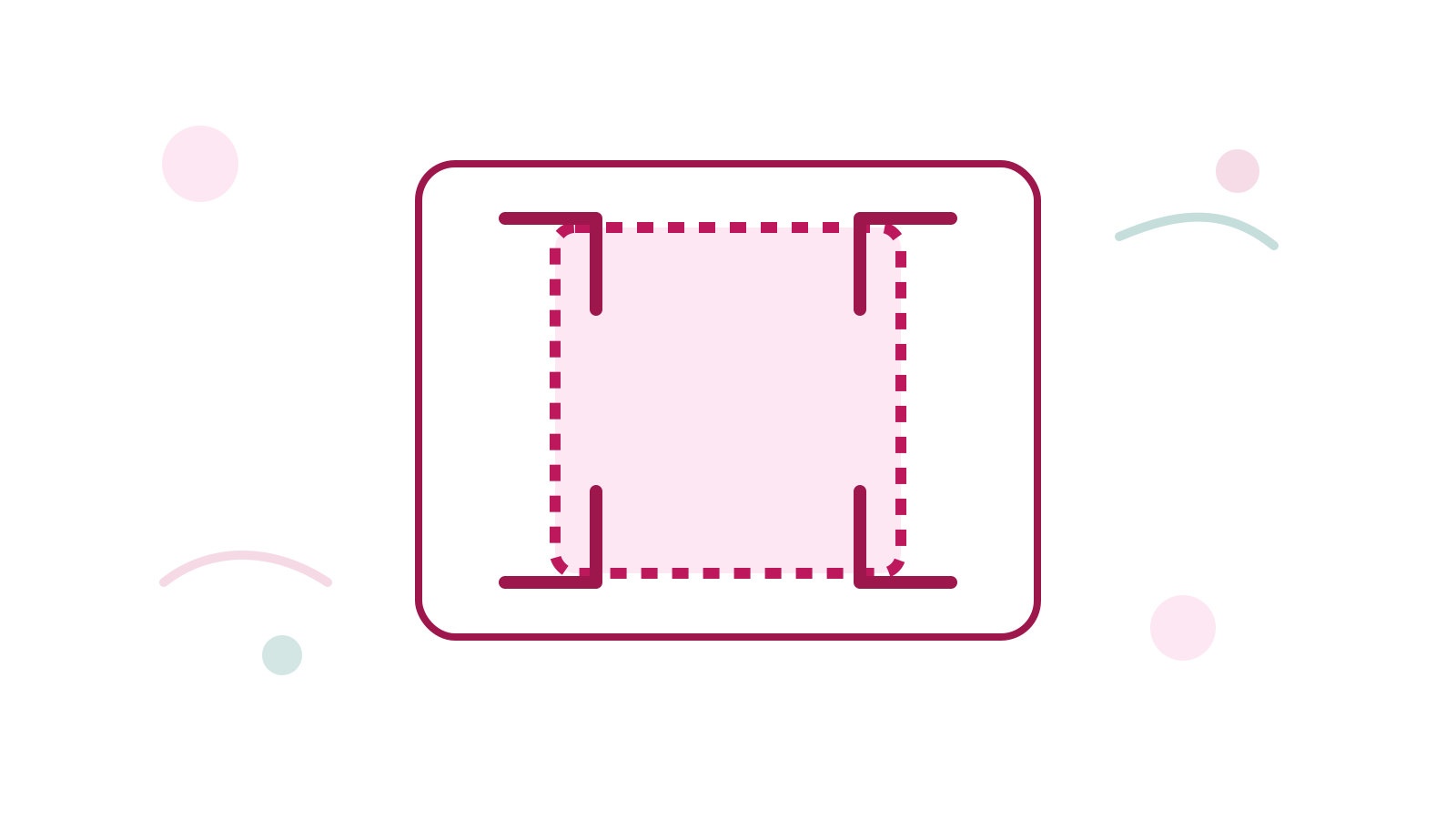
To crop an image to square well, lock the crop to a 1:1 shape, center the subject, and leave enough margin so the important detail does not get clipped.
If the square output still feels too large, continue with Resize Image or Compress Image.
When Square Crop Is the Right Move
Square works well for:
- profile images
- avatar uploads
- product thumbnails
- gallery cards
- simple social previews
If every image needs to align cleanly in a grid, square is usually easier to manage than mixing random aspect ratios.
Simple Workflow
- Upload the source image into Crop Image.
- Choose the 1:1 crop ratio.
- Move the crop until the subject sits comfortably inside the frame.
- Process the file, then resize or compress only if the final output still needs work.
Common Mistakes
Cropping too tight
Leave enough room around faces, products, or logos. A square frame exaggerates tight crops.
Resizing before you decide the crop
If the crop is still undecided, resize later. First lock the composition with Crop Image.
Keeping a file that is too heavy for thumbnails
If the square result is still larger than needed, use Compress Image or Resize Image.
FAQ
What ratio should I use for square?
Use a 1:1 crop ratio.
Should I crop or resize first?
Crop first when the main problem is composition. Resize after that if the square output is still too large.
What if I need the square image for a web card?
After cropping, run it through Compress Image so the grid loads faster.
Next Step
Use Crop Image to lock the square frame first, then fine-tune the result with Resize Image if the file still needs a cleaner final size.